GitHub Actions for CI/CD: A Complete Guide
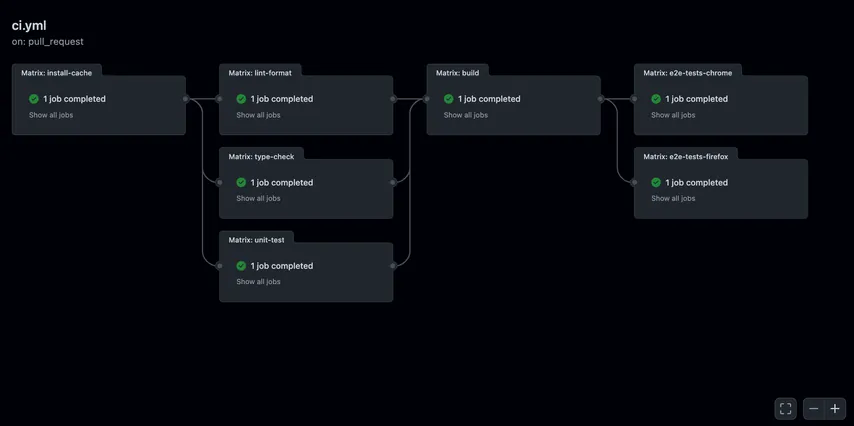
Continuous Integration and Continuous Delivery (CI/CD) is one of the core ideas behind DevOps. The goal is simple: instead of manually building, pushing, and deploying an application, we define a pipeline that performs those steps automatically.
The main advantages over manual command-line deployment or a local deployment script are:
- Repeatability: the same deployment steps run every time, reducing human error.
- Version tracking every deployment is linked to a Git commit, making it easier to know what changed and when. If something breaks, we can redeploy a previous image or commit more easily.
- Automation: deployments can happen automatically after a push, merge, or release.
- Better security: CI/CD processes can be isolated from your production environment, allowing only the runner to possess deployment credentials.
- Auditability: CI/CD logs provide a clear trail of who triggered a deployment and what changes were made.
- Easier collaboration: everyone on the team follows the same deployment process. Once the pipeline is defined, adding new applications or environments becomes easier.
In this article, we will go in depth into GitHub actions, what they are, how they work and how to set up a proper CI/CD system.
Anatomy of a workflow
GitHub Actions is a CI/CD system integrated into GitHub. It allows us to define automated workflows that trigger on repository events (e.g., push, pull request, release).
Workflows are defined as YAML file within the .github/workflows/ directory. They are composed of jobs and steps:
- Jobs: A group of steps that run on the same container.
- Steps: Individual tasks (running shell commands or using prebuilt actions).
We will focus on creating a workflow that tests, builds, and deploys our containerized application.
A basic CI/CD workflow usually follows this structure:
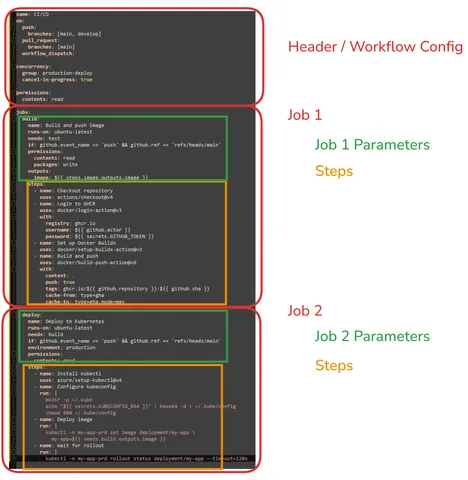
Header / Workflow Configuration
First we have the top of the workflow where we define a bunch of global settings, a basic header would look like this :
name: Build and Deploy to Kubernetes
on:
  push:
    branches:
      - main
      - develop
workflow_dispatch:The name field defines the display name of the workflow in the GitHub Actions UI. This is useful because a repository can have several workflows.
The on section defines when the workflow should run. GitHub Actions workflows are triggered by events such as push, pull_request, schedules, releases, or manual execution. It applies as soon as the workflow file is present in the git repository on GitHub.
In this example, the workflow runs in two situations:
- when code is pushed to the
mainordevelopbranch - when we manually start the workflow from the GitHub Actions interface using
workflow_dispatch. GitHub requires this trigger to show the “Run workflow” button in the Actions tab.
The option workflow_dispatch also allows you to define inputs if you wish to control manual run more precisely. For example here, we define an environment variable :
on:
  workflow_dispatch:
    inputs:
      environment:
        description: "Environment to deploy to"
        required: true
        default: "staging"
        type: choice
        options:
          - staging
- productionMany other triggers exist such as
Pull_request: Runs when a pull request has any kind of activity (creation, update, ...).pull_request_target: Similar topull_request, it runs a workflow in the context of the base repository, so it can manage PRs with higher permissions (More risky but sometimes useful).
For push, pull_request, and pull_request_target, you can specify sub-parameters to narrow down when the workflow runs:
branches/branches-ignore: Filter by branch names (supports wildcards).tags/tags-ignore: Filter by Git tags (supports wildcards).paths/paths-ignore: Run only if at least one modified file matches the pattern.
on:
  push:
    branches:
      - main
      - "releases/**"
    tags:
      - "v*"
    paths:
      - "src/**"
- "Dockerfile"You can trigger workflows based on almost any event that happens on GitHub. Many of these events accept a types parameter to specify which activity types trigger the run (e.g., created, edited, deleted). Here are the most common events:
| Parameter | Trigger Description |
|---|---|
| workflow_call | Make the workflow reusable so it can be called by other workflows. |
| workflow_run | Triggered when another workflow is requested or completed. |
| schedule | Periodically run the workflow at specific times using POSIX cron syntax. |
| repository_dispatch | Triggered by an HTTP request to the GitHub API from an external system. |
| issues | Triggered when an issue is opened, edited, closed, etc. |
| issue_comment | Triggered when a comment is created, edited, or deleted on an issue or PR. |
| release | Triggered when a release is created, published, or edited. |
| create | Triggered when a branch or tag is created. |
| delete | Triggered when a branch or tag is deleted. |
| discussion | Triggered when a GitHub Discussion is created or modified. |
| discussion_comment | Triggered when a comment on a discussion is created or modified. |
| fork | Triggered when someone forks the repository. |
| gollum | Triggered when a wiki page is created or updated. |
| label | Triggered when a label is created, edited, or deleted. |
| milestone | Triggered when a milestone is created, opened, completed, or edited. |
| project | Triggered when a classic project board is modified. |
| registry_package | Triggered when a package is published or updated (e.g., GHCR). |
| status | Triggered when the status of a Git commit changes. |
| watch | Triggered when a repository is starred. |
You can combine any of these parameters in a single workflow. The workflow will run if any of the defined events occur.
on:
  push:
    branches: [main]
  schedule:
    - cron: "0 12 * * *"
  issues:
    types: [opened, edited]
workflow_dispatch:jobs
A workflow contains one or more jobs. A job is a group of steps that run on the same runner. In simple workflows, we often start with a single job. Here is a basic job :
jobs:
  build-and-deploy:
    name: Build and deploy
    runs-on: ubuntu-latest
    env:
IMAGE_NAME: my-appHere, build-and-deploy is the internal identifier of the job. The name is the human-readable name displayed in the GitHub UI. Finally, the runs-on field defines on which machine the job will run. Currently, the runner is set to ubuntu-latest, which means the job runs on a GitHub-hosted Linux runner.
The env section defines environment variables that can be reused inside the job.
A GitHub Actions job can be configured with several optional parameters that control where it runs, how long it can run, what permissions it has, and how it behaves when something fails.
For example, a job can run inside a specific container image:
jobs:
  build:
    runs-on: ubuntu-latest
    container:
image: node:20-alpineBy default, a job runs directly on the GitHub-hosted runner, such as ubuntu-latest. However, using container lets you run the job inside a predefined Docker image.
This is useful when your workflow needs specific tools or dependencies. You could install those tools during the workflow, but that makes every run slower. A better option is often to use a custom image where the required tools are already installed.
A job can also define many other settings:
jobs:
  build:
    runs-on: ubuntu-latest

    # Only run this job on the main branch
    if: github.ref == 'refs/heads/main'

    # Stop the job if it runs for more than 15 minutes
    timeout-minutes: 15

    # Do not fail the whole workflow if this job fails
    continue-on-error: true

    # Limit what the job is allowed to do
    permissions:
      contents: read # Read from the repository
      packages: write # Publish packages

    # Attach this job to a GitHub environment
    environment: production

    # Run the same job with multiple values
    strategy:
      matrix:
        node-version: [18, 20, 22]
      fail-fast: true
      max-parallel: 2

    # Start extra containers needed during the job such as databases or caches
    services:
      postgres:
        image: postgres:15
        ports:
          - 5432:5432
    steps:
      - uses: actions/checkout@v4
      - name: Use Node.js
run: echo "Running with Node ${{ matrix.node-version }}"Jobs can also produce outputs that other jobs can reuse:
jobs:
  build:
    runs-on: ubuntu-latest
    outputs:
      version: ${{ steps.get_version.outputs.version }}
    steps:
      - id: get_version
run: echo "version=1.0.0" >> "$GITHUB_OUTPUT"$GITHUB_OUTPUT is a temporary file path provided by GitHub Actions where a step can write output values that later steps or jobs can reuse. This allows another job to access the value:
jobs:
  deploy:
    needs: build
    runs-on: ubuntu-latest
    steps:
- run: echo "Deploying version ${{ needs.build.outputs.version }}"You can also define default settings for all run steps inside a job:
jobs:
  build:
    runs-on: ubuntu-latest
    defaults:
      run:
        shell: bash
working-directory: ./frontendFinally, concurrency is useful when only one version of a job should run at a time, especially for deployments:
jobs:
  deploy:
    runs-on: ubuntu-latest
    concurrency:
      group: production-deploy
cancel-in-progress: trueWith cancel-in-progress: true, if a new instance of the workflow is triggered while another one is still running, GitHub cancels the older one and keeps only the latest deployment.
steps
A job is made of one or more steps.
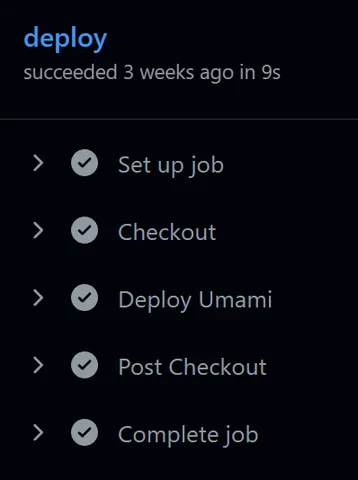
Each step represents a single task in the job. A step can either:
- Run a shell command using
run. - Use a prebuilt GitHub Actions using
uses.
For example:
jobs:
  build:
    runs-on: ubuntu-latest
    steps:
      - name: Checkout repository
        uses: actions/checkout@v4
      - name: Install dependencies & Test
        run: |
          npm install
npm testIn this example, the first step uses an existing action, while the other step run shell commands. Specifically the first step uses the official checkout action to download the repository code into the runner; basically this is running git clone. There exist many predefined actions such as github/super-linter@v7 for linter check. But you can also create your own custom action to be shared across workflows and projects.
Note : the | symbol in the run command allows us to write several shell commands in a single step.
A step can also define several optional parameters that are similar to jobs:
jobs:
  build:
    runs-on: ubuntu-latest
    steps:
      - name: Install dependencies
        if: github.ref == 'refs/heads/main'
        timeout-minutes: 10
        continue-on-error: true
        working-directory: ./frontend
        shell: bash
        env:
          NODE_ENV: production
run: npm installSome actions also accept input parameters using with:
jobs:
  build:
    runs-on: ubuntu-latest
    steps:
      - name: Setup Node.js
        uses: actions/setup-node@v4
        with:
          node-version: 20
cache: npmHere we use setup-node which configures the requested Node.js version on the runner and adds it to PATH, so commands like node, npm, and npx work in later steps. The parameter with passes configuration values to the action. In this case, it tells setup-node which Node.js version to install and enables npm caching.
Steps can also have an id. This is useful when another step needs to reuse its output:
jobs:
  build:
    runs-on: ubuntu-latest
    steps:
      - name: Get version
        id: get_version
        run: echo "version=1.0.0" >> "$GITHUB_OUTPUT"
      - name: Print version
run: echo "Version is ${{ steps.get_version.outputs.version }}"The first step writes a value to $GITHUB_OUTPUT. Because the step has an id, later steps can access that value using {{ steps.get_version.outputs.version }}.
So, in short: Jobs define the environment and execution rules. Steps define the actual work to perform.
Creating the Workflow
Now that we understand the anatomy of a workflow, let's assemble a complete CI/CD pipeline. This example workflow will automate three critical steps: testing your code, building a container image, and deploying it to your Kubernetes cluster.
The Complete Workflow
Create a test repos and save the YAML below to .github/workflows/deploy.yml in your repository root. Then, commit and push this file.
name: CI/CD
on:
  push:
    branches: [main, develop]
  pull_request:
    branches: [main]
  workflow_dispatch:

concurrency:
  group: production-deploy
  cancel-in-progress: true

permissions:
  contents: read

jobs:
  test:
    name: Test application
    runs-on: ubuntu-latest
    steps:
      - name: Checkout repository
        uses: actions/checkout@v4
      - name: Setup Node.js
        uses: actions/setup-node@v4
        with:
          node-version: 20
          cache: npm
      - name: Install dependencies
        run: npm ci
      - name: Run tests
        run: npm test

  build:
    name: Build and push image
    runs-on: ubuntu-latest
    needs: test
    if: github.event_name == 'push' && github.ref == 'refs/heads/main'
    permissions:
      contents: read
      packages: write
    outputs:
      image: ${{ steps.image.outputs.image }}
    steps:
      - name: Checkout repository
        uses: actions/checkout@v4
      - name: Set image name
        id: image
        run: |
          IMAGE="ghcr.io/${{ github.repository }}:${{ github.sha }}"
          echo "image=$IMAGE" >> "$GITHUB_OUTPUT"
      - name: Login to GHCR
        uses: docker/login-action@v3
        with:
          registry: ghcr.io
          username: ${{ github.actor }}
          password: ${{ secrets.GITHUB_TOKEN }}
      - name: Set up Docker Buildx
        uses: docker/setup-buildx-action@v3
      - name: Build and push
        uses: docker/build-push-action@v6
        with:
          context: .
          push: true
          tags: ${{ steps.image.outputs.image }}
          cache-from: type=gha
          cache-to: type=gha,mode=max

  deploy:
    name: Deploy to Kubernetes
    runs-on: ubuntu-latest
    needs: build
    if: github.event_name == 'push' && github.ref == 'refs/heads/main'
    environment: production
    permissions:
      contents: read
    steps:
      - name: Install kubectl
        uses: azure/setup-kubectl@v4
      - name: Configure kubeconfig
        run: |
          mkdir -p ~/.kube
          echo "${{ secrets.KUBECONFIG_B64 }}" | base64 -d > ~/.kube/config
          chmod 600 ~/.kube/config
      - name: Deploy image
        run: |
          kubectl -n my-app-prd set image deployment/my-app \
            my-app=${{ needs.build.outputs.image }}
      - name: Wait for rollout
        run: |
kubectl -n my-app-prd rollout status deployment/my-app --timeout=120sSecurity: Storing a kubeconfig as a base64-encoded CI secret is risky. Base64 is not encryption, and the file often grants long-lived, high-privilege access to your cluster. Prefer safer alternatives such as a self-hosted runner with limited in-cluster permissions or a GitOps workflow where the cluster pulls changes instead of exposing cluster access to CI.
Running and Verifying
- Triggering: The workflow is configured to run on every
pushandpull_requestto themainbranch or push to thedevelopbranch. It can also be triggered manually thanks to theworkflow_dispatchtrigger. - Monitoring: Navigate to the Actions tab in your GitHub repository. You will see the
CI/CDworkflow listed there. Click on the latest run to observe the Test, Build, and Deploy jobs in real-time.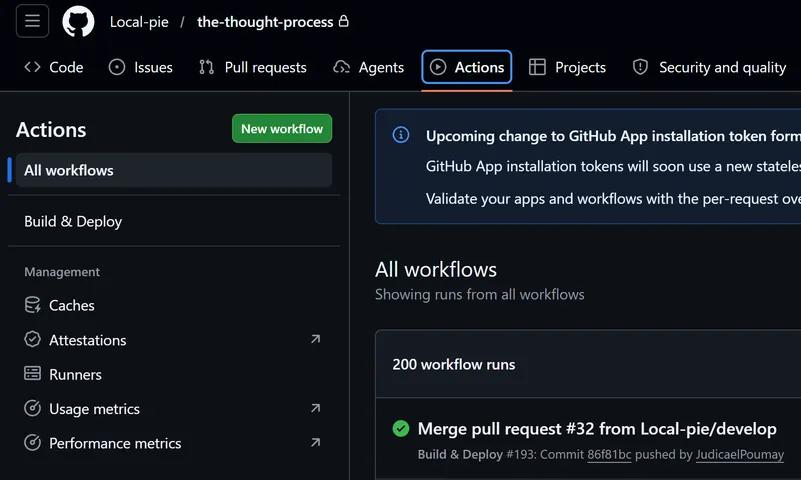
This example workflow is composed of three jobs :
- Test Job: Ensures code stability. We use
npm cifor reliable dependency installation. - Build Job: Only runs on
mainpushes to prevent unnecessary image builds. We tag the image with the specific commit SHA (${{ github.sha }}) to ensure exact traceability. - Deploy Job: Updates the Kubernetes cluster. The
rollout statuscommand acts as an automated verification step to confirm that the new deployment is successful.
Of course, without a project attached to it, this isn't going to do a lot. If you want to see a real repos with a simple workflow, here is an example of a small project I am working on : https://github.com/Local-pie/PiTTS/blob/main/.github/workflows/deploy.yml This is is a very basic and unoptimized workflow that builds and push a frontend and a backend.
Advanced GitHub Actions
Now that we have a deep understanding of the workflow syntax and the main important features, let's go into a more advanced territory.
Built-in Variables
GitHub Actions provides built-in values through contexts. GitHub provides contexts such as github, env, vars, secrets, steps, and runner to access workflow information dynamically. One of the most useful contexts is the github context, which contains information about the workflow run, the repository, the branch, the commit, the actor, and the event that triggered the workflow. GitHub also exposes many of these values as default environment variables such as GITHUB_SHA, GITHUB_REF, and GITHUB_RUN_ID.
Useful values include:
| Variable | Meaning | Example use |
|---|---|---|
${{ github.sha }} | Commit SHA that triggered the workflow | Tag Docker images |
${{ github.ref }} | Full Git ref | Check if the workflow runs on main |
${{ github.ref_name }} | Short branch or tag name | Create branch-based image tags |
${{ github.repository }} | Repository name including owner | Build image names |
${{ github.repository_owner }} | Repository owner or organization | Build registry paths |
${{ github.actor }} | User who triggered the workflow | Logging or audit messages |
${{ github.event_name }} | Event that triggered the workflow | Run logic differently for push or pull_request |
${{ github.run_id }} | Unique ID of the workflow run | Create traceable deployment IDs |
${{ github.run_number }} | Incremental run number for the workflow | Create readable build numbers |
${{ github.workflow }} | Name of the workflow | Logs, notifications, deployment metadata |
${{ github.job }} | Current job ID | Debugging or logging |
${{ github.workspace }} | Path where the repository is checked out | File paths in scripts |
For Docker image tags, these are especially useful:
${{ github.sha }} ${{ github.ref_name }} ${{ github.run_number }}A common strategy is to push multiple tags for the same image:
docker build \
  -t ghcr.io/my-org/my-app:${{ github.sha }} \
  -t ghcr.io/my-org/my-app:${{ github.ref_name }} \
-t ghcr.io/my-org/my-app:latestNow each build a unique image tag. Instead of only pushing latest, we know exactly which commit produced each image. This gives you different levels of traceability:
| Tag | Purpose |
|---|---|
${{ github.sha }} | Exact commit, best for reproducibility |
${{ github.ref_name }} | Branch or tag name, useful for main, dev, or v1.0.0 |
latest | Convenient default, but not precise |
build-${{ github.run_number }} | Human-readable build identifier |
Secrets And Variables
You wouldn't want to store you API key or other credentials on your repos in plain text. That would be unwise. GitHub Secrets allow you to store these kind of secrets and then access them in a workflow using the secrets context. For example :
${{ secrets.REGISTRY_PASSWORD }}
In this example, we use secrets to log in to a container registry:
  - name: Login to GHCR
	uses: docker/login-action@v3
	with:
	  registry: ghcr.io
	  username: ${{ github.actor }}
	  password: ${{ secrets.GITHUB_TOKEN }}
To create a secret, go to your repository settings under Secrets and Variables. Here you can create secrets per environment, at the repository level or even at the organisation level if you are inside of one.
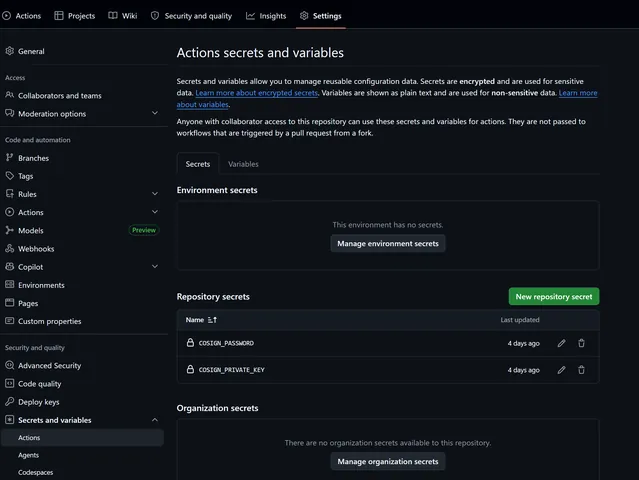
If a secret has the same name in the organization, repository and environment section. GitHub will use the most specific one so : Environment > Repository > Organization.
By the way, if you wonder about environment, that's what the job environment parameter does, it defines which environment to use and thus which secrets and variables we use.
Similarly, you can also create variables which are kind of like secrets, expect that once you write a secret, you can never see its value again from the UI. For variables you can read them later.
Multiple jobs
A workflow can also be split into multiple jobs. For example:
name: CI/CD pipeline
on:
  push:
    branches:
      - main
jobs:
  test:
    name: Run tests
    runs-on: ubuntu-latest
    steps:
      - name: Checkout source code
        uses: actions/checkout@v4
      - name: Run tests
        run: |
          echo "Running tests..."
  deploy:
    name: Deploy application
    runs-on: ubuntu-latest
    needs: test
    steps:
      - name: Deploy
        run: |
echo "Deploying application..."Here, we have two jobs:
test: checks that the application worksdeploy: deploys the application
The important part is:
needs: testJobs run in parallel by default which can be useful but sometimes we need them to be sequential. needs: test means the deploy job only starts after the test job is done and succeeds. This is useful because we usually do not want to deploy an application if the tests are failing.
Through this, we can build complex pipelines with dependencies and parallel jobs. For example running multiple tests in parallel before building and deploying.
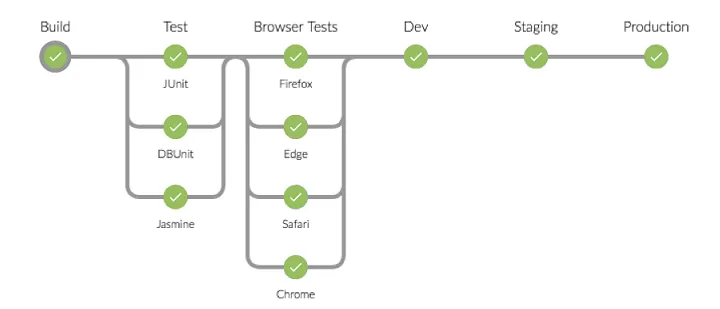
Jobs should be split when we want to separate responsibilities. For example, testing, building, and deploying can be three different jobs. This makes the pipeline easier to read, allows some jobs to run in parallel, and lets us give different permissions to different parts of the pipeline.
permissions
A workflow can also define permissions for the default GITHUB_TOKEN. This is important because we should only give the workflow the permissions it really needs. GitHub recommends configuring token permissions instead of giving workflows unnecessary access.
For example:
permissions:
  contents: read
packages: writeThis means the workflow can read the repository content and write packages, but it does not automatically receive every possible permission. Other permissions exist to automatically create Pull requests or comment on issues and more!
Concurrency
Imagine you push commit A, then quickly push commit B. Without concurrency control, both deployments might run in parallel. Depending on timing, commit A could finish after commit B and accidentally roll the application back.
The parameter concurrency fixes this issue :
concurrency:
  group: production-deploy
cancel-in-progress: trueA concurrency group ensures that only one workflow or job from the same group runs at a time. With cancel-in-progress: true, any currently running deployment is cancelled when a newer one is triggered, so only the latest deployment continues. With cancel-in-progress: false, the current deployment is allowed to finish before the next one starts.
Pro Tips
A better final deployment step
After deploying an application on Kubernetes which is what you are most likely to do, you can add this :
 - name: Wait for rollout
	run: |
	  kubectl -n my-app-prd rollout status deployment/my-app --timeout=180s

  - name: Show running image
	run: |
	  kubectl -n my-app-prd get deployment my-app \\
		-o=jsonpath='{.spec.template.spec.containers[0].image}'
	  echo

  - name: Smoke test
	run: |
curl --fail --silent --show-error https://example.com/healthThis gives you three layers of confidence:
- Kubernetes accepted the deployment.
- The new pods became ready.
- The public application endpoint responds.
That is much better than only applying YAML.
Avoiding the latest trap
Many tutorials use:
ghcr.io/owner/app:latest
This is simple, but it creates ambiguity. If the pod is running latest, which commit is actually deployed? Worse, Kubernetes may not always pull the image when you expect, depending on the tag and imagePullPolicy.
For deployment pipelines, prefer immutable or traceable tags:
ghcr.io/owner/app:<commit-sha>
Optionally, publish multiple tags:
ghcr.io/owner/app:<commit-sha>
ghcr.io/owner/app:main
ghcr.io/owner/app:v1.2.3
But deploy using the commit SHA.
GitOps : Pull-based CI/CD
The workflow above uses push-based deployment: GitHub Actions runs the workflow and updates the deployment.
Another approach is GitOps. With GitOps, the cluster pulls desired state from Git using tools like Argo CD or Flux. In that model, GitHub Actions might only build the image and update a manifest repository. The cluster notices the change and applies it.
GitOps is better when you do not want GitHub Actions to hold direct cluster credentials.
Use GitHub Environment
As I explained in the section Secrets and Variables, you can define the environment in which a job runs with :
jobs:
  build:
    runs-on: ubuntu-latest

    # Environment to be used
	environment: ${{ github.ref_name == 'main' && 'production' || 'staging' }}

    steps:
      - uses: actions/checkout@v4
      - name: Use Node.js
run: echo "Running with Node ${{ matrix.node-version }}"Notice the ternary condition used. For the main branch we use the production environment, otherwise we use staging.
This is useful in situation where different environment have different needs. For example, you have a database secret that changes depending on the environment.
Having separate environment is a good habit even for a small project. A personal blog may not need a full enterprise release process, but it still benefits from a clear boundary between testing and production.
A common setup is:
Pull request -> test only
Push to develop -> build and deploy to preproduction
Pull request push to main -> manual approval -> production deployment
Where to go next
Once this basic pipeline works, you can improve it gradually:
- Add staging and production environments.
- Add manual approval before production.
- Use Helm or Kustomize instead of direct
kubectl. - Add vulnerability scanning.
- Sign images.
- Deploy by digest instead of tag.
- Add preview environments for pull requests.
- Create reusable workflows if several repositories share the same pipeline.
- Add notifications when deployment fails.
Do not try to add all of these on day one. A good CI/CD pipeline should evolve like any other project. Start with tests, image build, deployment, and rollout verification. Then improve security and observability step by step.
Common mistakes in GitHub Actions deployment workflows
Mistake 1: Deploying from pull requests
Pull requests can contain untrusted code. Be careful with secrets and deployments in pull request workflows. Use pull requests for testing. Use branche updates for deployment.
Mistake 2: Forgetting image pull secrets
If GHCR images are private, Kubernetes needs credentials too. The workflow being able to push the image does not mean the cluster can pull it.
Mistake 3: Installing tools manually in every workflow
If your deployment job needs kubectl, helm, kustomize, yq, and cloud CLIs, consider creating a small custom CI image or using a well-maintained setup action. This keeps workflows faster and cleaner.
Mistake 4: Deploying using latest
While simpler, using the latest image makes it harder to debug and trace back the origin of an image. It can also lead to situation where Kubernetes pulls the wrong image in production if you push latest in pre production.
Troubleshooting
Waiting for a runner to pick up this job
The job is queued but no matching runner is available.
Check:
- Is
runs-oncorrect? - If you are self-hosting, Is the self-hosted runner online?
- Does the runner have the required labels?
- If using ARC, is the listener pod running?
- Is the runner registered at repository, organization, or enterprise level?
- If your repos is public, did you enable public repos for the runner?
- Be careful, this means anyone could start a workflow if you use a pull request trigger.
For ARC, remember that the runs-on value must match the runner scale set installation name.
Cannot connect to the Docker daemon
The runner does not have access to Docker.
This is common with Kubernetes-based self-hosted runners. Possible fixes include:
- Configure Docker-in-Docker.
- Use BuildKit without Docker.
- Use Kaniko or Buildah.
- Use a remote builder.
Don't blindly mounting /var/run/docker.sock from the host. It is powerful, but it can give the job near-host-level control.
permission_denied: write_package
The workflow cannot push to GHCR.
Check:
- Does the job have
packages: write? - Are you using
secrets.GITHUB_TOKENcorrectly? - Is the package connected to the repository?
- Was the package created manually before the workflow?
- Are you pushing to the right owner and repository path?
ImagePullBackOff
Kubernetes cannot pull the image.
Check:
kubectl -n my-app-prd describe pod <pod-name>
Common causes:
- Wrong image name.
- Wrong tag.
- Private GHCR image without
imagePullSecret. - Token lacks
read:packages. - Registry rate limiting or network issue.
If you are tired of registry limitations, you can self-host a container registry to keep your images closer to where they are built and deployed.
Don’t forget about the architecture ARM64 vs AMD64
For a Raspberry Pi or ARM-based cluster, pay attention to image architecture. If GitHub builds an amd64 image and your Pi needs arm64, the pod will fail. Docker Buildx can build multi-architecture images:
     - name: Build and push multi-arch image
        uses: docker/build-push-action@v6
        with:
          context: .
          push: true
          platforms: linux/amd64,linux/arm64
          tags: ${{ steps.image.outputs.image }}
This is useful if you develop on one architecture and deploy on another.